Usage examples
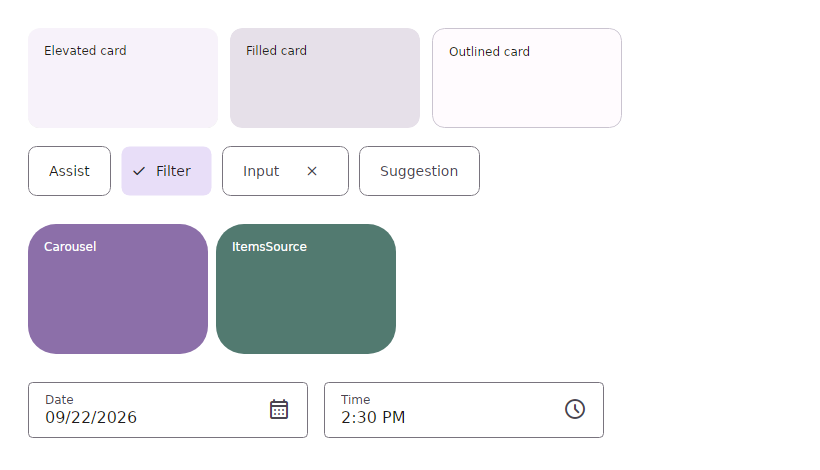
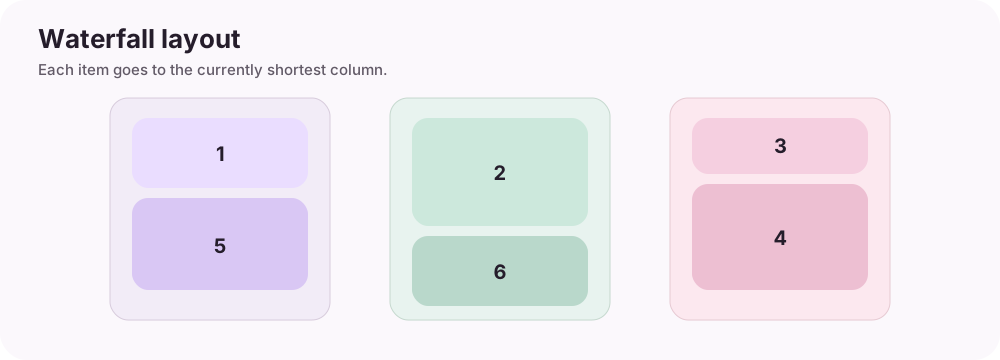
These short examples show how the package guides fit into real screens. The screenshots are captured from the project gallery; the waterfall diagram is a purpose-made layout illustration. For a complete runnable demo, open the Gallery source.
1. A small form
Use standard Avalonia bindings and commands with Md3 controls. Bind the properties to a ViewModel just as you would with native controls.
<StackPanel Margin="24" Spacing="16">
  <TextBlock Text="New workspace" />
  <md:MdTextBox Label="Workspace name"
                Text="{Binding WorkspaceName}" />
  <md:MdComboBox Label="Platform"
                 Variant="Outlined"
                 ItemsSource="{Binding Platforms}"
                 SelectedItem="{Binding SelectedPlatform}" />
  <md:MdButton Content="Create workspace"
               Variant="Filled"
               Command="{Binding CreateCommand}" />
</StackPanel>
md is the Md3.Avalonia.Controls namespace. Register MaterialTheme in App.axaml first; see the quick start.
2. Icon actions
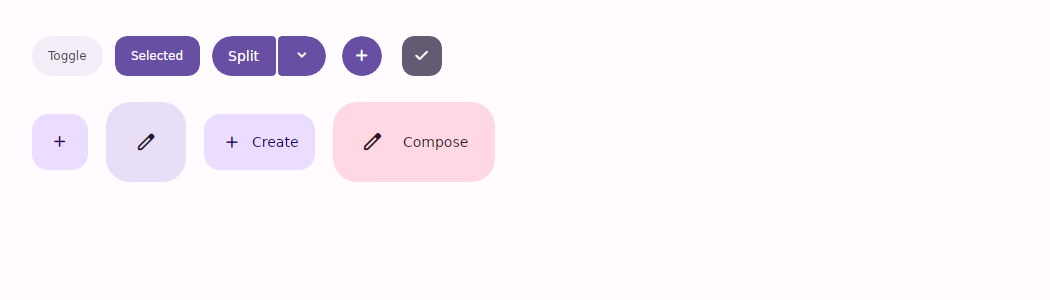
Install either Md3.Avalonia.Icons or Md3.Avalonia.Icons.Lite, then use the public glyph catalog with the core icon button. The font is embedded and registered by the icon package.
<StackPanel Orientation="Horizontal" Spacing="12">
  <md:MdIconButton Icon="{x:Static md:MdSymbols.Edit}"
                   Variant="Filled"
                   Command="{Binding EditCommand}"
                   AutomationProperties.Name="Edit workspace" />
  <md:MdButton Content="Create"
               Variant="Tonal"
               Command="{Binding CreateCommand}" />
</StackPanel>
MdSymbols lives in the same Md3.Avalonia.Controls XAML namespace as MdIconButton. Use MdSymbolsLite when you installed the Lite package.
3. Apply a dynamic color scheme
Generate roles from a seed color and apply them at application scope. Call this after registering MaterialTheme; theme resources are dynamic, so controls update when the roles change.
using Avalonia.Controls;
using Avalonia.Styling;
using Md3.Avalonia.Themes.Dynamic;

var application = Application.Current!;
var options = new MdThemeOptions
{
    SeedColor = "#006A6A",
    SchemeVariant = MdThemeSchemeVariant.Expressive,
    ContrastLevel = MdThemeContrastLevel.High,
    ThemeMode = MdThemeMode.System
};

var useDarkScheme = application.ActualThemeVariant == ThemeVariant.Dark;
MdThemeManager.Apply(application, options, useDarkScheme);
ThemeMode.System also tracks later system light/dark changes. The API reference documents the scheme, contrast, motion, and shape options.
4. Staggered cards with Extra
After adding Md3.Avalonia.Extra and registering ExtraTheme after the core theme, MdWaterfall distributes children into the shortest column. Set Columns to pin the number of columns; leave it at zero to derive a responsive count from MinColumnWidth.
<eco:MdWaterfall MinColumnWidth="220"
                 ColumnSpacing="12"
                 ItemSpacing="12">
  <md:MdCard Variant="Elevated" Height="120" />
  <md:MdCard Variant="Filled" Height="190" />
  <md:MdCard Variant="Outlined" Height="90" />
  <md:MdCard Variant="Elevated" Height="160" />
  <md:MdCard Variant="Filled" Height="110" />
  <md:MdCard Variant="Outlined" Height="200" />
</eco:MdWaterfall>
Use xmlns:eco="using:Md3.Avalonia.Extra.Controls" and xmlns:md="using:Md3.Avalonia.Controls". MdWaterfall also supports ItemsSource for data-bound collections. See NuGet packages for the optional package details.
5. ViewModel-driven dialogs
Keep ViewModels free of control references: inject IMdDialogService, show a dialog model, and await its result. The full guide includes the host, data templates, cancellation, and popup ownership behavior.
See the dialog service guide and its matching API reference for a complete example.